Your phone lock screen is the picture you look at more than any other all year — dozens of times a day. So why settle for a generic Pinterest halloween phone wallpaper that half your contacts also have? Making your own spooky wallpaper takes about five minutes, costs nothing, and ends up looking exactly like your taste, not a stock result. This guide walks you through the full process: picking a proportion, choosing a palette, arranging elements so your time and icons do not overlap the good part, and exporting a clean halloween background for iPhone or Android.
Why make your own wallpaper instead of downloading one
The free-download route has three problems. First, most images are stretched to fit, so your clock sits right on the moon's face. Second, the resolution is low and Android home-screen scrolling feels blurry. Third, everyone's lock screen looks the same. A homemade wallpaper solves all three: you design for your screen, at native resolution, with your colour story. Our browser Spooky Wallpaper Maker does the heavy lifting — you choose the ratio, palette and elements, and it renders a downloadable PNG at the correct size.
Step 1: Pick the right proportion (and why 9:16 is only the start)
Wallpaper proportions are not one-size-fits-all:
- Phone wallpaper — 9:16. The default for every modern iPhone and Android. Always generate in this ratio for a phone.
- iPhone perspective/parallax. iOS gently shifts the image as you tilt the phone, so keep the main subject slightly off-centre and leave 10–15% of empty breathing space on each side. A subject glued to the exact centre will "float" when the phone moves.
- Tablet or foldable — closer to 4:3 or 1:1. Generate separately; a phone wallpaper stretched onto a tablet looks pixelated.
- Desktop — 16:9 or wider. Make a second export for your laptop screen.
The Wallpaper Maker lets you switch between phone, tablet and desktop ratios in one click, so you can design one theme for every device.
Step 2: Choose a palette that reads as "spooky" — not "noisy"
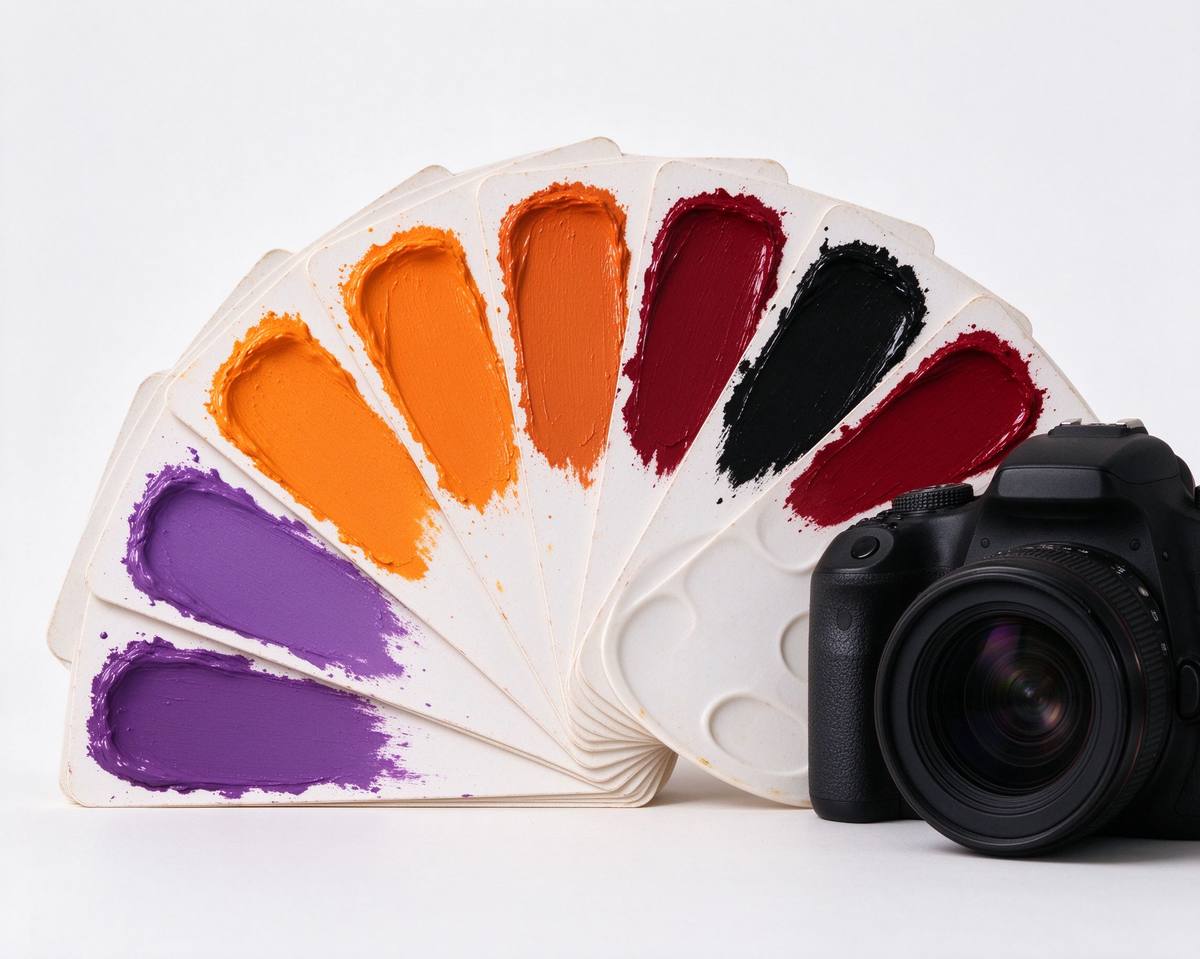
The single difference between a wallpaper that feels atmospheric and one that feels like a sticker sheet is the palette. Four proven Halloween palettes work every time:
| Palette | Feeling | Use it when |
|---|---|---|
| Midnight purple | Mysterious, moonlit | You want it subtle enough for workweek mornings |
| Pumpkin orange | Classic, playful | You love the nostalgic Halloween-store vibe |
| Blood-moon red | Dramatic, bold | You want a wallpaper that stops people mid-swipe |
| Ghost-fire green | Eerie, toxic, fun | You prefer weird over scary |
A useful rule: one saturated colour on a near-black background beats three loud colours. If you want a hand-picked five-colour scheme with hex codes, the Spooky Palette tool generates harmonious Halloween combinations you can copy straight into your design.
Step 3: Arrange elements around your icons
This is the design step most people miss. On a phone, the top 20% of the screen holds the clock and date, and the bottom 15% holds your dock and search bar. So:
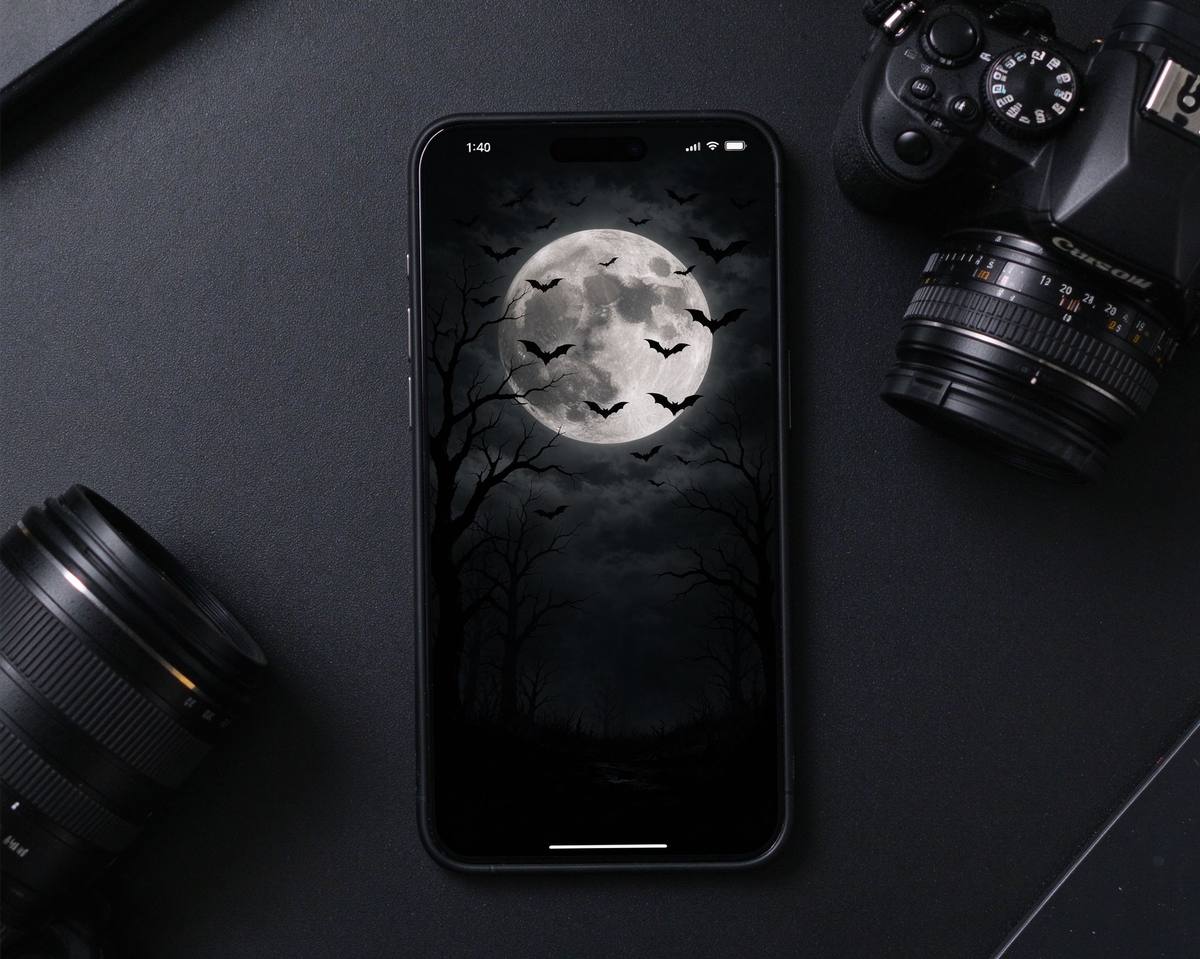
- Put the hero element (moon, big ghost, main pumpkin) in the middle band — roughly between 25% and 70% of the height.
- Keep the top and bottom bands darker or emptier, so white clock text and colourful icons stay readable.
- Scatter small elements — bats, stars, webs — around the edges, never across the centre. They add texture without fighting the subject.
- Add a slight vignette so the wallpaper darkens toward the corners; this is the oldest trick in interface design for making icons pop.
- Turn on the subtle grain/noise option if available. A tiny amount of texture stops flat digital colour from looking cheap.
Test trick: after generating, set the wallpaper and actually open your home screen. If any icon sits exactly on a bat's wing, regenerate with fewer edge elements. Random placement means every generation is unique, so two clicks usually lands you a clean one.
Step 4: Export and apply
Download the PNG, save it to your phone, then:
- iPhone: Settings → Wallpaper → Add New Wallpaper → Photos, then choose "Perspective" off if you want a perfectly still image. Pick "Set as pair" if you want lock and home screens identical.
- Android: Long-press the home screen → Wallpaper → Gallery → crop with the system tool. Use a 9:16 crop so icons do not zoom unexpectedly.
If you want one wallpaper as a profile-picture companion, run the downloaded image through the Avatar Generator to crop a matching spooky avatar for X, Instagram and Discord in the same palette.
Frequently asked questions
Can I make a spooky wallpaper without any design skills?
Yes — that is the point of a wallpaper maker. You do not draw anything; you pick a palette, toggle a few elements, and let the generator place them randomly. Regenerate until you like the layout.
What size should my halloween background for iPhone be?
A 9:16 ratio at roughly 1170×2532 pixels (or any higher resolution in that ratio) fits current iPhones perfectly. The Wallpaper Maker exports in the right ratio automatically.
Will a dark wallpaper hurt my phone battery?
On OLED screens (most modern phones), a dark wallpaper slightly reduces battery drain because black pixels emit no light. A spooky dark theme is genuinely the battery-friendly choice.
中文要点摘要(Chinese key points)
核心结论:自制惊悚手机壁纸5分钟搞定,比下载Pinterest图更适配自己的屏幕、更清晰、不会撞图。
四步流程:①选比例(手机9:16,主元素避开顶部时钟区和底部Dock区);②选配色(午夜紫/南瓜橙/血月红/鬼火绿,一个亮色配近黑底最稳);③元素放中部、蝙蝠星星散在边缘、加暗角和细噪点;④按iPhone/Android各自方式设置壁纸,关掉透视效果可完全静止。
设计口诀:主图放中部、上下留暗边、图标不压主体、一配深色胜过三配色。
工具搭配:壁纸用 Spooky Wallpaper Maker,配色用 Spooky Palette,再用 Avatar Generator 裁出同系列社交头像。
Give your lock screen a Halloween makeover
You now know the two secrets most free wallpaper sites skip: leave room for the clock, and use one saturated colour on a dark base. Open the Spooky Wallpaper Maker, pick your palette, and generate three versions — one for your phone, one for your desktop, one to send to your group chat. When you are ready to design original spooky art beyond wallpapers, read our guide to writing the perfect Halloween AI art prompt, or check the 2026 roundup of AI Halloween photo effects for more ideas.